Systems • • 10 min
Connecting OpenClaw to Google Calendar: OAuth, Read-Only Scopes, and the Seven-Day Trap
A practical walkthrough of giving a self-hosted AI assistant useful Calendar context without handing it permission to change anything, plus the OAuth detail that can quietly break the setup a week later.
By Aniket Tripathi
The deceptively simple goal
The feature request sounded almost trivial: let OpenClaw answer questions such as “How does my day look?” The finished interaction is simple. The machinery behind it is not.
A calendar is private, changing, account-owned data. OpenClaw therefore cannot scrape it once, store a password, or call Google anonymously. It needs a registered application, an explicit consent flow, a narrowly scoped token, persistent secret handling, and a runtime that can refresh access without asking the user to sign in every morning.
The first milestone was deliberately conservative. The assistant should be able to list calendars, read events, detect overlaps, and summarize open time. It should not be able to create, edit, delete, move, or respond to anything.
- Read calendars and events
- Combine schedules across calendars
- Identify conflicts and open windows
- Make no changes to Google Calendar
The architecture
The integration uses `gog`, a Google Workspace CLI, as the bridge between OpenClaw and Google’s APIs. OpenClaw decides what calendar information is needed, `gog` handles OAuth and API requests, and Google Calendar remains the source of truth.
Two credentials play different roles. The OAuth client identifies the application to Google. The refresh token represents one user’s consent and lets the server request short-lived access tokens later. Neither is the user’s Google password.
OpenClaw
  -> gog CLI
    -> OAuth refresh token
      -> Google Calendar API
-> calendar and event dataOAuth client = which application is asking
Refresh token = which user approved it
Scope = exactly what the application may doEnabling the API
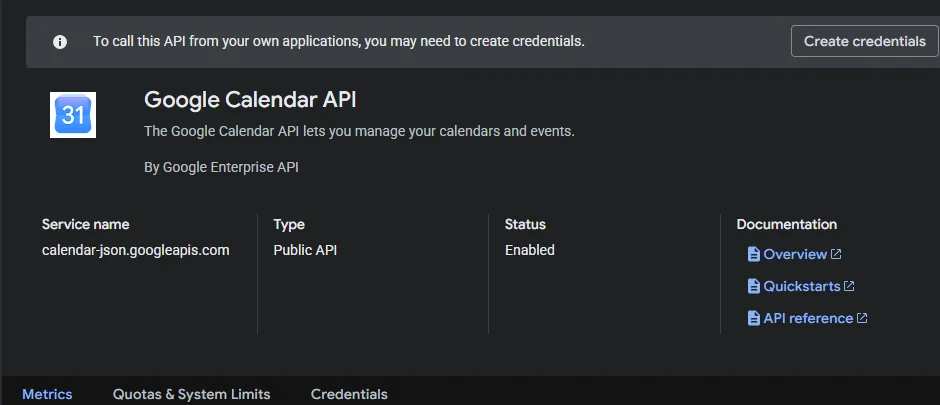
The work began in a dedicated Google Cloud project. Enabling the Google Calendar API sounds administrative, but it is the switch that allows credentials from that project to call Calendar endpoints at all.
Using a dedicated project also keeps the integration legible. Its consent configuration, credentials, quotas, and future audit trail are separated from unrelated experiments.
User data, not application data
Google asks whether the application needs user data or application data. Calendar events belong to a Google user, so the correct choice is user data. That creates an OAuth client and requires the account owner to consent.
Application data would lead toward a service account. Service accounts are useful for server-owned resources and managed Google Workspace domains, but they are not the normal route into a personal calendar.

Choosing the smallest useful scope
The scope screen is where an integration can quietly become much more powerful than intended. Google offers permissions for full Calendar control, event editing, ACL management, free/busy access, settings, and several narrower variants.
For this milestone, the important permission was `calendar.readonly`: see and download calendars the user can access. The OAuth flow also included the minimal identity scopes needed to associate the token with the correct account.
We intentionally rejected the broad Calendar scope and every event-writing scope. Least privilege is not ceremonial here. If the token is ever mishandled, read-only access materially limits the damage it can cause.
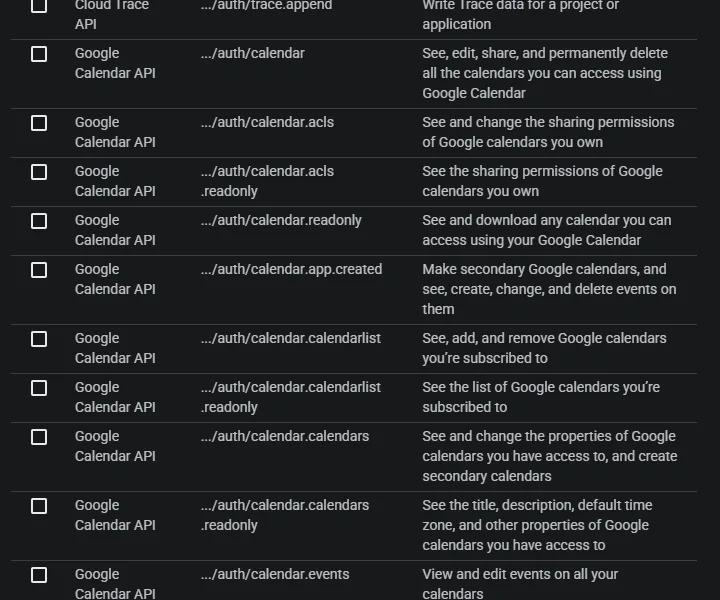
https://www.googleapis.com/auth/calendar.readonly
openid
https://www.googleapis.com/auth/userinfo.emailWhy the client type is Desktop app
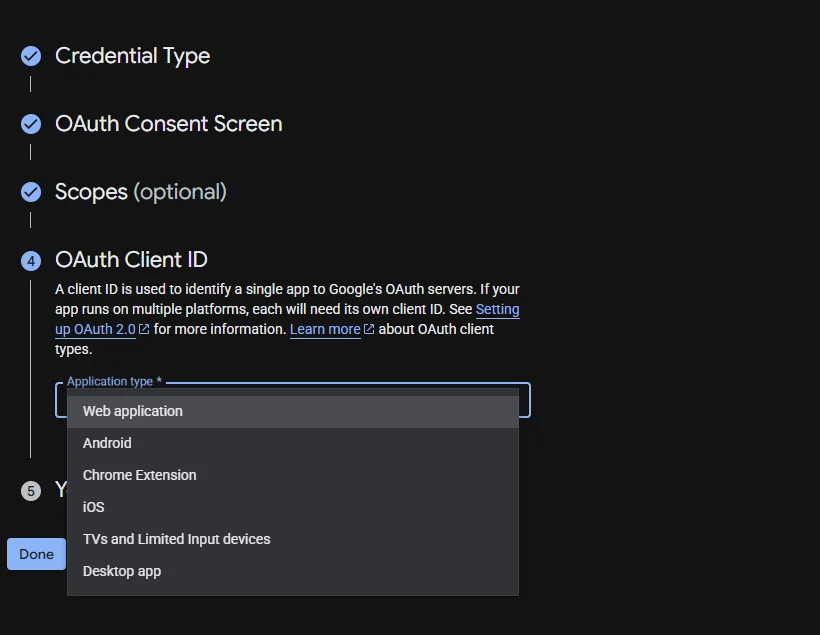
The OAuth client type had to match the way authorization would actually happen. `gog` launches a local or remote-assisted browser flow and receives the final redirect on a loopback address, so a Desktop app client is the appropriate fit.
A Web application client is designed around stable hosted redirect URLs. Choosing it here would add the wrong redirect assumptions and make a small CLI integration unnecessarily awkward.
From client secret to refresh token
Google generated a client-secret JSON file. That file was transferred to the server without pasting its contents into chat, then imported into `gog`. The secret identifies the OAuth client; it does not grant Calendar access by itself.
The actual account access arrived through the consent flow. `gog` generated an authorization URL, the user signed into Google and approved read-only Calendar access, and Google redirected the browser to a localhost callback containing a one-time authorization code.
Because the browser and OpenClaw server were not the same machine, the final localhost page did not need to load successfully. Copying the complete redirect URL allowed `gog` to validate the OAuth state, exchange the one-time code, and store the resulting refresh token.
gog auth credentials <client-secret.json>
gog auth add <account> --services calendar --readonly --remote --step 1gog auth add <account> \
--services calendar \
--readonly \
--remote --step 2 \
--auth-url '<complete localhost redirect URL>'The failure that explained the model
The first authorization attempt returned an access-blocked error. The app was in Testing mode, which means Google only allows accounts explicitly listed as test users to complete consent.
Adding the account as a test user fixed the immediate block. A second minor failure came from submitting a callback URL from an older OAuth attempt. OAuth `state` values are session-specific, so the old callback could not be exchanged against the new session. Generating a fresh URL and returning its matching callback completed the flow.
Both failures were useful. One demonstrated Google’s audience controls; the other demonstrated why the `state` parameter exists: it binds the callback to the authorization request that initiated it.
- Testing mode admits only approved test users
- Authorization codes are short-lived and single-use
- OAuth state must match the active request
- A failed localhost page can still contain a valid callback URL
Making it survive the shell
A token that works only in one interactive terminal is not an OpenClaw integration. The gateway service also needs the same `gog` home directory, keyring backend, and keyring password so future agent sessions can read the stored token.
The configuration was attached to the OpenClaw systemd user service. Credentials are stored under a dedicated `gog` data directory, the credential files are mode `600`, and the keyring directory is mode `700`.
GOG_HOME=<private gog data directory>
GOG_KEYRING_BACKEND=file
GOG_KEYRING_PASSWORD=<stored outside public source>Proving the integration
The verification was intentionally behavioral. Listing stored accounts proved the refresh token could be opened. Listing calendars proved the Calendar API accepted it. Reading one day across all calendars proved OpenClaw could turn the raw event set into a useful answer.
The account exposed ten calendars. The assistant combined their event windows, identified one overlap, and summarized the best open periods for the day. No event was created or changed.
One work calendar exposed only free/busy information. That is not an OAuth bug: the connected account itself has limited permission on that calendar. The integration cannot reveal titles Google does not reveal to the user behind the token.
gog auth list
gog calendar calendars --account <account>
gog calendar events --account <account> \
--all --from '<start>' --to '<end>' --sort=start --jsonWhat is complete
The first level is operational. OpenClaw can securely read Calendar data, combine multiple calendars, reason about a day, and retain access across gateway sessions. The user’s password is never stored, and the granted token cannot modify Calendar.
- OAuth client configured
- Read-only consent completed
- Refresh token stored
- Gateway environment configured
- Calendars and events successfully queried
- Natural-language daily summary demonstrated
The seven-day trap
Operational is not yet the same as durable. The Google OAuth application is still in Testing mode. For external apps using scopes beyond basic identity, refresh tokens issued during Testing can expire after seven days.
That means a setup can look completely healthy, work for a week, and then appear to break for no obvious reason. The remaining durability step is to move the OAuth app to In production and authorize the account again so the stored refresh token is issued under the production publishing state.
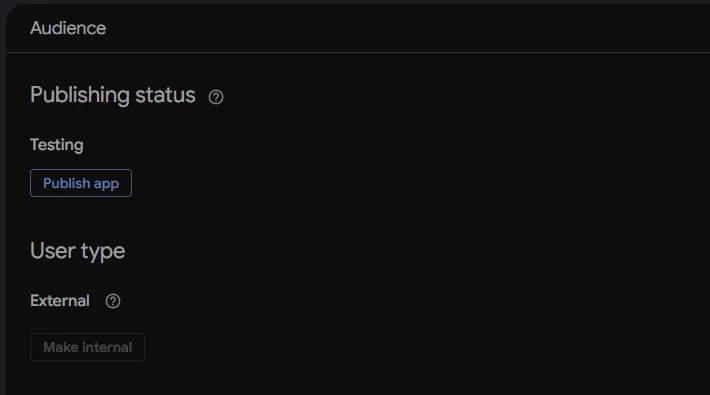
- Change publishing status from Testing to In production
- Re-authorize once after publishing
- Verify the replacement token from the gateway
- Document a simple reauthorization recovery path
What comes next
After durability, the next improvements are product decisions rather than plumbing. Better work-calendar visibility requires permission to see event details or separate authorization for the work account. Write access would require broader scopes and a clear approval policy before OpenClaw changes anything.
The more interesting layer is proactive use: morning agendas, conflict alerts, meeting preparation, travel buffers, and end-of-day reviews. Those workflows should be added only after the underlying token is durable and each notification has a clear reason to exist.
- Publish the OAuth app and replace the test token
- Improve work-calendar sharing only if company policy allows it
- Keep write access as a separate, explicit upgrade
- Add morning briefs and conflict alerts after reliability is proven
- Monitor token health and surface reauthorization failures clearly
The larger lesson
The useful part of this build was not getting an AI to recite calendar events. It was establishing a trustworthy boundary between an assistant and a sensitive personal system.
A good integration is not defined only by what it can do. It is also defined by what it cannot do, how visibly it fails, and how easily its permissions can be understood. Starting read-only made the first version useful without making it reckless. That is a strong default for every personal-agent integration that follows.